If you work with PDF files every day, simply being able to open a document is no longer enough. At some point, you need to highlight a paragraph, correct a typo, sign a contract, extract a few pages, convert a scanned document into editable text, or shrink a file before emailing it. That is exactly the type of workflow Kdan PDF Reader is designed to handle.
There is one naming detail worth knowing before you download it. Kdan PDF Reader is now branded as KDAN PDF, although the older “Kdan PDF Reader” name is still widely used by existing users and in searches. The current app combines PDF viewing with editing, annotation, conversion, OCR, signatures, page management, security features, and newer AI-powered document tools. It is available across Windows, Mac, iPhone, iPad, and Android.
From my perspective, KDAN PDF sits somewhere between a simple free PDF viewer and a heavier professional package such as Adobe Acrobat. You can start with basic tools without paying, then move into advanced editing, OCR, conversion, cloud synchronization, and AI features if your workflow demands more.
This Kdan PDF Reader guide covers downloading, installation, PDF editing, AI functions, subscriptions, device compatibility, user feedback, security, competitor comparisons, and the problems you are most likely to encounter after installation.
I. Introduction to Kdan PDF Reader
A. What Is Kdan PDF Reader?
Kdan PDF Reader, now called KDAN PDF, is an all-in-one PDF reader and document editor developed by Kdan Mobile Software.
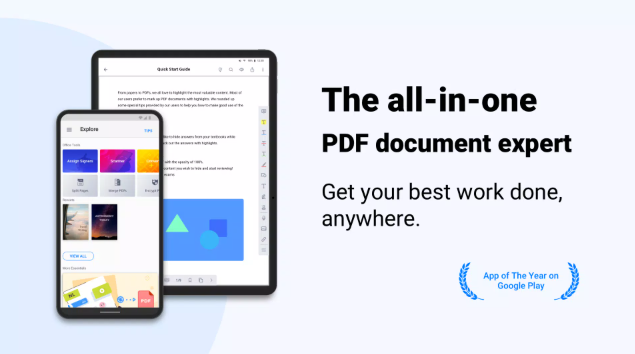
The software goes well beyond opening and printing documents. Depending on your platform and plan, you can edit existing PDF text, annotate pages, organize documents, fill forms, add signatures, perform OCR, convert files, compress PDFs, add security controls, and work with documents across multiple devices.
One thing I like about the app is that it does not feel as though every user must be a document-management expert. If all you want to do is read a PDF and highlight a few sentences, those tools are easy to find. When you need more serious functions, the deeper editing features are there as well.
The current product also includes AI-assisted workflows for analyzing PDFs, summarizing information, extracting data, and interacting with documents through a conversational assistant.
B. Why Choose Kdan PDF Reader?
The strongest reason to consider Kdan PDF Reader is its balance between usability and functionality.
Basic users can treat it as a cleaner PDF viewer and annotation app. Students can highlight textbooks and research papers. Office users can edit forms, reorganize pages, convert files, and sign documents. Businesses can use the more advanced document-management and security options.
It makes particular sense if you regularly switch between a computer and a phone.
Adobe Acrobat may offer a broader professional ecosystem, but some users simply do not need everything Adobe provides. KDAN PDF gives you many everyday PDF tools without forcing the interface to feel like enterprise document software from the first minute.
C. Available Platforms: Windows, Mac, iOS, and Android
KDAN PDF currently supports four major platforms:
-
Windows
-
macOS
-
iPhone and iPad
-
Android phones and tablets
The official KDAN PDF site links directly to Microsoft Store, Mac App Store, Apple App Store, and Google Play versions of the software.
The feature set is not identical on every platform. Desktop versions are generally better for advanced editing and large documents, while mobile versions emphasize reading, scanning, signing, annotation, and working on the go.
II. How to Download Kdan PDF Reader
A. Google Play Store Method
For Android, the easiest and safest download method is Google Play.
Open Google Play and search for PDF Reader (KDAN PDF): Edit PDF. Check that the developer is Kdan Mobile Software Ltd. before installing.
Then:
-
Tap Install.
-
Wait for the download to finish.
-
Open KDAN PDF.
-
Grant only the permissions you need.
-
Sign in if you want cloud synchronization or paid account features.
The Android version currently has more than 10 million Google Play downloads, so make sure you select the established official listing rather than an unrelated app using a similar PDF Reader name.
B. App Store Installation
On iPhone or iPad, open Apple's App Store and search for PDF Reader – Editor & Viewer or KDAN PDF.
The official listing identifies Kdan Mobile Software LTD as the developer.
Tap Get, authenticate with Face ID, Touch ID, or your Apple account, and allow the installation to finish.
The iOS application is free to download with optional in-app purchases. The current U.S. App Store listing shows support for iPhone and iPad and describes the product as KDAN PDF, formerly KDAN PDF Reader.
C. Windows and Mac Download Options
Windows users can obtain KDAN PDF through the Microsoft Store or from KDAN's official download page.
Mac users can install the application through the Mac App Store.
I recommend using these official channels rather than random software-download websites. PDF editors often handle contracts, invoices, IDs, financial documents, and confidential work files. That makes installing a modified or unofficial version an unnecessary risk.
III. Installing and Setting Up Kdan PDF Reader
A. Installation Steps
Installation is straightforward on all supported platforms.
On Windows, download the Microsoft Store version, click Install, and launch it from the Start menu after installation.
On Mac, download KDAN PDF from the Mac App Store and open it from Applications.
Android and iOS users simply complete the app-store installation and launch the application.
The first time you open KDAN PDF, spend a minute exploring the home screen instead of immediately changing every preference. The interface generally organizes tools around reading, editing, conversion, page management, signatures, annotation, and file access.
B. Creating a Kdan Account
A KDAN account is useful if you want your documents, subscriptions, and supported cloud services connected across devices.
Create an account using the sign-up option shown inside the application. If you already purchased Document 365 or another KDAN plan, use the same account associated with the purchase.
For basic offline reading and annotation, you may not need to rely heavily on an online account. For cloud storage, synchronization, subscription activation, and connected services, signing in becomes much more important.
C. Initial App Configuration
After signing in, I recommend checking three areas first: storage, cloud services, and default viewing preferences.
Decide where new files should be saved. Connect only the cloud services you actually use. Then adjust reading preferences such as scrolling direction, page display, night mode, or text reflow.
If you are on mobile, also review camera and file permissions. Camera access makes sense if you intend to scan documents, but there is no reason to give every permission automatically.
IV. Core PDF Editing Features
A. Editing Text Directly in PDFs
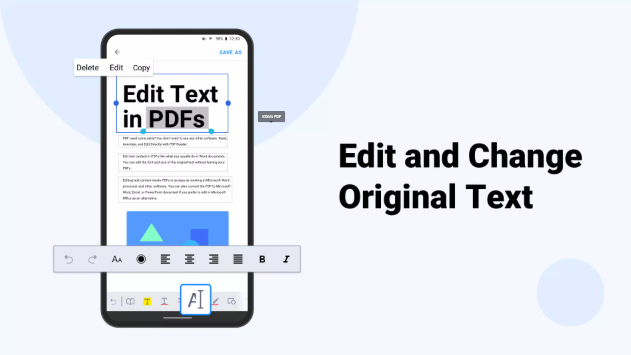
One of the biggest differences between a basic PDF viewer and a true editor is whether you can change existing text.
KDAN PDF's paid desktop tools allow you to correct words, replace text, add content, and make other direct changes without converting the entire document into Word first.
This is useful for small fixes such as correcting a date, changing an address, updating a proposal, or fixing a typo.
The free desktop version focuses more heavily on basic functions, while direct PDF text editing is among the advanced features unlocked by the paid license.
B. Annotating and Markup Tools
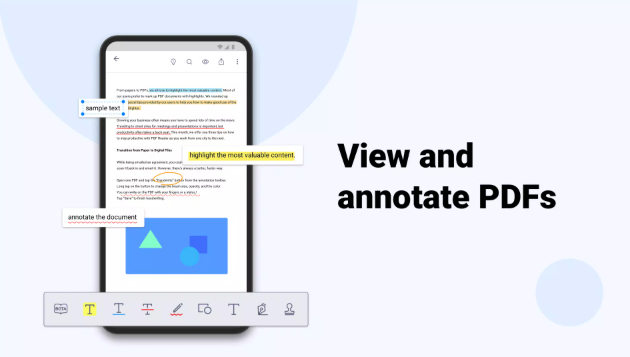
Annotation is one of KDAN PDF's strongest everyday features.
You can highlight text, underline sections, strike through content, insert text boxes, add sticky notes, draw freehand, add shapes, and place stamps on documents.
For students, this makes reading long PDFs far easier.
For office teams, the same tools can be used to review proposals or contracts without permanently rewriting the original document.
I particularly like using different highlight colors for different purposes: one for key facts, another for questions, and another for sections requiring follow-up.
C. Merging and Splitting PDF Files
KDAN PDF can combine multiple PDFs into one file or split a large document into smaller files.
This sounds like a small feature until you actually need it.
Suppose a client sends you five separate PDFs that should really be one report. Instead of sending five attachments back, merge them.
Or imagine receiving a 120-page PDF when you only need pages 35 through 42. Splitting or extracting those pages creates a much cleaner file.
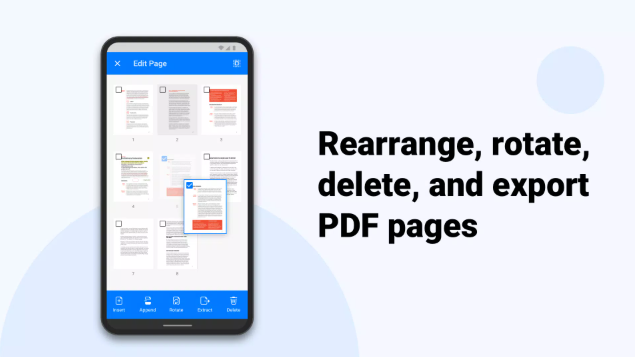
You can also rotate, delete, insert, extract, and rearrange pages as part of the page-management workflow.
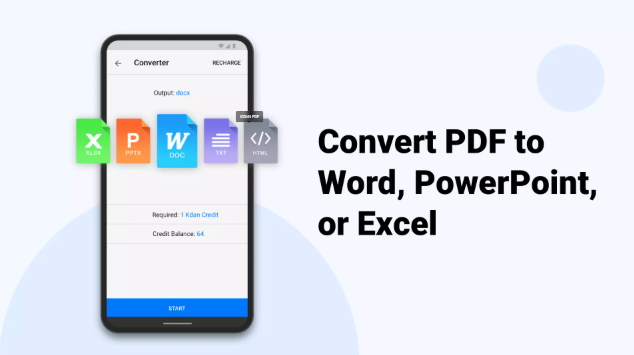
D. Converting PDF to Word or Image
PDF conversion is useful when a document needs more extensive editing.
KDAN PDF supports converting PDFs into formats such as Word, Excel, PowerPoint, text, and common image formats, with available conversions differing slightly by platform.
If I only need to correct two words, I would edit the PDF directly.
If I need to rewrite half the document, converting it to an editable Office format can be faster.
Just remember that complicated layouts rarely convert perfectly in any PDF application. Tables, unusual fonts, multi-column pages, and graphics may require cleanup afterward.
V. Advanced Document Tools
A. PDF OCR and Text Recognition
OCR stands for Optical Character Recognition.
It solves a common PDF problem: scanned pages often look like text but are really just images.
OCR analyzes those images and identifies the letters so that the document becomes searchable or editable.
KDAN PDF supports OCR for scanned files and can output recognized content as text or searchable PDFs. The current product listings state support for more than 50 OCR languages.
OCR quality naturally depends on the scan.
A clean, straight, high-resolution page usually works much better than a blurry photograph with shadows and handwriting.
B. Scanning Documents to PDF
The mobile version can turn your phone into a portable document scanner.
You can photograph paper documents and combine the captured pages into a PDF.
I find this especially useful for receipts, classroom notes, signed paperwork, invoices, and documents you need to send quickly when a traditional scanner is nowhere nearby.
For better results, put the paper on a contrasting surface, use bright even lighting, keep the phone parallel to the document, and avoid shadows.
C. Electronic Signatures and Form Filling
KDAN PDF allows users to fill PDF forms and place signatures directly onto documents.
That makes it useful for everyday agreements, registration forms, internal company documents, permission forms, and other paperwork that would otherwise need to be printed and scanned again.
You can create and manage signatures so you do not have to redraw one every time.
For legally important transactions, remember that placing a visual signature onto a PDF and using a specialized digital-signature platform can involve different authentication and compliance requirements.
D. Compression and Watermark Tools
Large PDFs can be painful to email.
Compression reduces file size and can make sharing easier, although aggressive compression may reduce image quality.
KDAN PDF also provides watermark tools, allowing you to mark documents with labels such as drafts, confidential notices, company branding, or ownership information.
Security-focused tools can additionally protect PDFs with passwords and restrictions.
VI. AI-Powered Features
A. AI Document Analysis
KDAN has increasingly built AI directly into its PDF workflow.
Instead of manually reading a long report from beginning to end, supported AI tools can analyze the document and help surface important information.
For example, you may use AI to examine a report, locate important data, explain sections, extract structured information, or identify information that deserves closer review.
This is most useful for long documents where your real goal is understanding rather than editing every page.
B. AI Summarization Tools
PDF summarization is one of the most practical AI additions.
KDAN PDF's current AI offering can generate summaries from documents, helping users get an overview before reading the complete file.
I would use this for a 70-page research document, meeting report, business proposal, or lengthy reference file.
I would not blindly copy an AI-generated summary into professional work without checking the original PDF. Numbers, legal wording, technical statements, and nuanced conclusions should always be verified against the source document.
C. Smart PDF Assistant Functions
The AI assistant lets users interact with documents more conversationally.
You can ask questions about a PDF, request explanations, summarize sections, translate content, or extract specific information. The current desktop product also supports data extraction and AI-assisted redaction workflows.
Recent versions have gone even further by introducing KDAN PDF MCP connectivity for supported AI assistants, allowing authorized document actions to be triggered through conversational workflows.
For everyday users, though, the simpler “chat with my PDF” functionality is probably the feature they will notice first.
VII. Cross-Device Sync and Collaboration
A. Kdan Cloud Storage
KDAN Cloud gives you online storage that can connect documents across supported devices.
Document 365 currently includes cloud storage as part of its cross-platform workflow, with the Android listing describing 1 TB of KDAN Cloud storage for subscribed users.
That can be useful if your routine looks like this:
You scan a document on your phone in the morning, review it on your Windows PC at work, and later add notes from an iPad.
Instead of manually emailing the file to yourself each time, cloud synchronization keeps the workflow much cleaner.
B. Syncing PDFs Across Devices
A major selling point of Document 365 is access across Android, iOS, Windows, and Mac.
Once your files and account are connected correctly, you can move between devices without rebuilding your document library from scratch.
For users with only one computer, this may not matter much.
For someone working from a laptop, office PC, tablet, and phone, it can be one of the strongest reasons to choose a subscription instead of a single-device permanent license.
C. Workspace Collaboration Features
KDAN PDF also supports document sharing and workflows involving annotations and comments.
It is useful for reviewing documents with classmates, coworkers, or clients, particularly when the goal is gathering feedback rather than building a complex project-management system.
I would describe the collaboration functions as document-centered.
If your team needs advanced task tracking, approval chains, project dashboards, and communication channels, you will probably combine KDAN PDF with other business software rather than replacing those systems entirely.
VIII. Pricing and Subscription Plans
A. Free vs. Premium Comparison
KDAN PDF can be downloaded and used for free.
The free desktop version includes essentials such as PDF viewing, annotation, signatures, form filling, and handwriting. Advanced tools such as direct text editing, professional conversion, OCR, compression, and other higher-level functions are tied to paid licensing.
That means the free version is genuinely useful for reading and light document work.
If your main goal is changing existing PDF content rather than simply marking it up, expect to move toward a paid plan.
B. Subscription Costs
As of 2026, KDAN's official pricing page lists Document 365 at USD $59.99 per year. It covers the professional PDF suite across Windows, Mac, iOS, and Android and includes a seven-day trial.
The mobile App Store also currently lists monthly and quarterly options in the U.S., including approximately $9.99 per month and $19.99 per quarter, with the annual option at $59.99.
Prices can vary by country, taxes, app store, and promotion, so check the checkout screen before subscribing.
C. Lifetime License Options
If you dislike subscriptions, KDAN PDF has something increasingly unusual in productivity software: a permanent desktop license.
The official 2026 price is $119.99 per device for either Windows or Mac. It is designed as a one-time purchase for advanced desktop PDF tools and offline use.
The important phrase is per device.
Do not assume that buying one permanent Windows license automatically gives you the Mac, iPhone, and Android versions with every premium feature.
For a single desktop computer, however, the permanent license can make financial sense if you expect to use the program for several years.
D. Business and Education Plans
KDAN also offers business and education-oriented licensing.
For organizations requiring larger deployments, centralized management, enterprise security, volume licensing, or self-hosted options, KDAN positions LynxPDF and related enterprise solutions above the ordinary consumer PDF product.
Schools and companies should contact KDAN for current volume pricing instead of multiplying individual consumer subscriptions.
IX. Platform Compatibility and Requirements
A. Windows and macOS Compatibility
Current KDAN documentation lists the Windows desktop version as requiring Windows 10 version 18362.0 or later with a 64-bit Intel or AMD processor.
The Mac version requires macOS 11 or later.
The listed desktop installation sizes are approximately 156 MB for Windows and 278.5 MB for the Mac version on KDAN's permanent-license page, although actual disk usage can increase after updates and local data are added.
B. iOS and Android Compatibility
The current Apple listing requires iOS/iPadOS 13.0 or later in supported storefronts.
Android compatibility is determined through Google Play based on the device and current release.
If Google Play says your phone is incompatible, I recommend updating Android before looking for an old APK from an unofficial site.
Older PDF applications may still function, but document software frequently handles sensitive information. Running current operating systems and current application builds is the better security choice.
C. System Requirements and File Size Support
PDF editing itself is not particularly demanding compared with video or 3D software, but large PDFs can consume substantial memory.
A 10-page text document is easy.
A 2,000-page engineering manual containing thousands of high-resolution images is completely different.
If you regularly work with huge scanned PDFs, more RAM and SSD storage will improve responsiveness.
There is no single useful maximum PDF size for every workflow because performance depends on page count, image resolution, compression, OCR layers, annotations, and hardware.
X. User Reviews and Ratings
A. App Store and Play Store Ratings
KDAN PDF has accumulated a large mobile audience.
The U.S. App Store currently shows around 4.5 out of 5 stars from roughly 3,600 ratings, while Google Play shows approximately 3.8 stars with more than 100,000 reviews and over 10 million downloads. Ratings naturally change as new reviews are submitted.
The difference between platforms is worth noticing.
It suggests that the experience can vary depending on operating system, app version, subscription expectations, and the specific tools people use.
B. G2 and TrustRadius Reviews
Independent business-software review platforms are generally positive.
G2 currently gives KDAN PDF roughly 4.5 out of 5 across about 184 reviews, while TrustRadius shows an 8/10 score based on six ratings and reviews.
Because TrustRadius has a much smaller sample, I would put more weight on patterns across several platforms than on any one score.
C. Common Pros and Cons
The most common strengths are easy annotation, cross-device availability, broad PDF features, signatures, document conversion, and an interface that many users find easier to approach than heavier alternatives.
The main complaints tend to involve subscription expectations, advertisements in free versions, occasional login or file-handling problems, and some feature differences between platforms. G2 reviews also include both strong praise for usability and isolated criticism involving billing or support experiences.
That is why I recommend trying the free version before paying.
Use your own real documents for a week and see whether the workflow fits you.
XI. Kdan PDF Reader vs. Competitors
A. Kdan PDF vs. Adobe Acrobat
Adobe Acrobat is still the reference point for professional PDF software.
Its biggest strengths are its mature business ecosystem, advanced document workflows, widespread corporate use, and extremely broad feature set.
KDAN PDF's advantage is accessibility.
The interface feels less intimidating, its permanent desktop license gives subscription-averse users another option, and it covers most of the tasks ordinary professionals actually perform.
Choose Acrobat if your company has standardized on Adobe or your work depends on specialized enterprise PDF features.
Choose KDAN PDF if you want strong editing, OCR, signatures, conversion, and AI tools without committing to the Adobe ecosystem.
B. Kdan PDF vs. Foxit Reader
Foxit has long been known as a lighter alternative to Adobe and offers strong PDF viewing and business document features.
For pure reading and conventional enterprise PDF workflows, Foxit remains a solid choice.
KDAN increasingly differentiates itself through cross-device workflows and integrated AI document analysis.
The two are closer competitors than their interfaces initially suggest.
If AI summarization, mobile document management, and a straightforward lifetime desktop option matter to you, KDAN deserves a serious look.
C. Best PDF Editors of 2026
For 2026, I would not call any PDF editor universally “best.”
Adobe Acrobat is strongest when professional standardization matters.
Foxit is attractive for traditional PDF productivity and business deployment.
KDAN PDF works well for users who want editing, OCR, mobile access, AI features, and flexible payment choices in one ecosystem.
If you only read PDFs and occasionally highlight text, all three may be more software than you actually need.
XII. Use Cases by Audience
A. Kdan PDF for Business
Business users can use KDAN PDF for invoices, contracts, proposals, reports, employee forms, signatures, document conversion, and sensitive-data redaction.
The ability to edit PDFs directly can save considerable time when a small correction would otherwise force you to locate the original Word or PowerPoint file.
For remote workers, cross-device synchronization is particularly practical.
B. Kdan PDF for Students
Students may actually get more value from the annotation tools than from advanced editing.
You can highlight textbooks, write notes in margins, bookmark important pages, scan worksheets, perform OCR on printed material, and organize research documents.
AI summarization can also help you orient yourself inside long academic documents, although it should complement reading rather than replace it.
For coursework involving citations, always verify AI-produced summaries against the original paper.
C. Kdan PDF for Enterprise Document Management
Larger organizations need more than a consumer PDF editor.
Centralized licensing, deployment, security, data sovereignty, and access control become much more important when hundreds of employees are handling confidential documents.
KDAN offers enterprise-oriented document products and self-hosted deployment options beyond standard KDAN PDF subscriptions.
That makes the wider KDAN ecosystem more relevant for enterprises than the mobile PDF Reader app alone.
XIII. Security and Privacy
A. Secure Editing Features
KDAN PDF includes several tools for protecting documents.
Depending on platform and license, you can add passwords, restrict access, apply watermarks, redact sensitive content, and validate signatures or certificates.
Redaction deserves special attention.
Covering private text with a black rectangle is not always enough because the original text may remain underneath.
A proper redaction tool removes the sensitive information from the final document.
B. Privacy Policy Overview
KDAN maintains a privacy policy covering its PDF products, accounts, cloud services, and AI-related functionality.
Apple's current privacy disclosure indicates that some usage, identifier, and diagnostic information may be processed depending on platform and feature configuration, while Google Play reports encryption in transit and provides a mechanism for requesting data deletion.
Privacy-conscious users should review the current disclosures before uploading highly sensitive documents to cloud or AI services.
C. Data Protection Practices
For ordinary local PDF editing, keeping documents on the device provides a different privacy profile from sending information to an online AI or cloud-processing feature.
That distinction matters.
I am comfortable using cloud tools for routine reports and general documents, but I would think twice before uploading confidential legal files, unreleased financial statements, identity documents, or sensitive client material without first reviewing the organization's policies.
KDAN also promotes offline desktop workflows and enterprise deployment options for organizations with stricter data-control requirements.
XIV. Customer Support and Troubleshooting
A. Accessing Kdan Help Desk
KDAN provides a support center containing tutorials and FAQs.
The current product listings also provide helpdesk@kdanmobile.com for customer assistance.
When contacting support, include your device, operating system, KDAN PDF version, purchase platform, and a clear description of what happened.
Screenshots are useful.
“PDF won't open” gives support very little information.
“PDF Reader 10.4 on iPadOS crashes every time I open a 75 MB scanned PDF” is much easier to troubleshoot.
B. Common Installation Issues
If KDAN PDF will not install, check these things first:
Confirm that your operating system meets the minimum requirement.
Make sure enough free storage is available.
Restart your device.
Update Microsoft Store, App Store, or Google Play.
Check whether company security software is blocking installations.
Download again from the official source if the installer appears corrupted.
Avoid solving the issue by downloading random modified APKs or third-party desktop installers.
C. Account and Sync Problems
When documents disappear from one device, account mismatch is often the first thing I check.
Confirm that every device is signed into the same KDAN account.
Next, check your internet connection and cloud-storage status.
If you recently subscribed but premium tools remain locked, sign out, restart the application, and sign in again.
For purchases made through Apple, Google, or Microsoft, also verify that the correct store account is active.
XV. Frequently Asked Questions
A. Is Kdan PDF Reader Free?
Yes. Kdan PDF Reader, now called KDAN PDF, is free to download and provides basic PDF functionality without requiring an upfront payment.
On desktop, free features include viewing, annotation, signatures, form filling, and handwriting, while advanced editing and productivity tools require a paid plan or permanent license.
Document 365 currently costs $59.99 per year in the U.S., while a one-device permanent Windows or Mac license is listed at $119.99.
B. Which Devices Support Kdan PDF Reader?
KDAN PDF is available for:
-
Windows PCs
-
Macs
-
iPhones
-
iPads
-
Android phones
-
Android tablets
Windows currently requires a supported 64-bit Windows 10 or later environment, while the desktop Mac version requires macOS 11 or later. Current iPhone and iPad listings require iOS/iPadOS 13 or later.
Cross-platform Document 365 access can connect your workflow across the four main operating systems.
C. How Does Kdan Compare to Adobe Acrobat?
Adobe Acrobat remains the stronger choice for organizations deeply invested in Adobe's professional document ecosystem.
KDAN PDF is more appealing when you want a simpler interface, strong everyday editing tools, OCR, conversion, annotation, signatures, mobile access, AI-assisted document analysis, and a permanent desktop purchase option.
For casual PDF reading, you may not need either premium package.
For everyday professional PDF editing without the complexity of a larger enterprise platform, Kdan PDF Reader is a credible alternative.
Let's wrap things up
Kdan PDF Reader, now officially known as KDAN PDF, has grown well beyond being a basic document viewer. It can handle most of the PDF jobs people encounter in everyday work: reading, annotation, text editing, OCR, scanning, signatures, forms, page organization, conversion, compression, password protection, and cloud access.
Its newer AI tools make the software more interesting in 2026. Being able to ask questions about a document, summarize a long report, extract data, or locate important information changes PDF software from something you merely use to edit pages into something that can help you understand them.
I also like that KDAN gives users several ways to approach pricing. You can begin with the free version, subscribe to Document 365 for cross-device access, add AI functionality through the higher-tier offering, or buy a permanent desktop license if you would rather avoid an ongoing subscription.
There are still trade-offs. Some advanced features are locked behind paid plans, functionality varies somewhat between desktop and mobile platforms, and user reviews show that billing, advertisements, account access, or particular editing workflows can occasionally cause frustration.
For that reason, my recommendation is to start with the free version rather than subscribing immediately.
Open the PDFs you actually use in real life. Highlight a research paper. Sign a form. Scan a receipt. Rearrange pages. Try the conversion workflow. See whether the interface feels natural.
If those basic tasks work comfortably and you regularly need direct editing, OCR, cross-device synchronization, or AI analysis, upgrading makes much more sense.
For students, mobile professionals, small businesses, and everyday users who want more capability than a basic PDF viewer without jumping immediately into Adobe Acrobat, Kdan PDF Reader remains one of the more practical all-in-one PDF tools to consider in 2026.